

Shards of the Banished
Shards of the Banished is a action RPG game with Souls Like element where you can explore an open world, fight monsters, loot items, upgrade your skills and weapons.
Project Info
Role: Game Programmer & Product Owner
Team Size: 9 active members, 23 in total contributed.
Time Frame: Still in development
Engine: Unreal Engine

Combat System Component
Attacking:
-
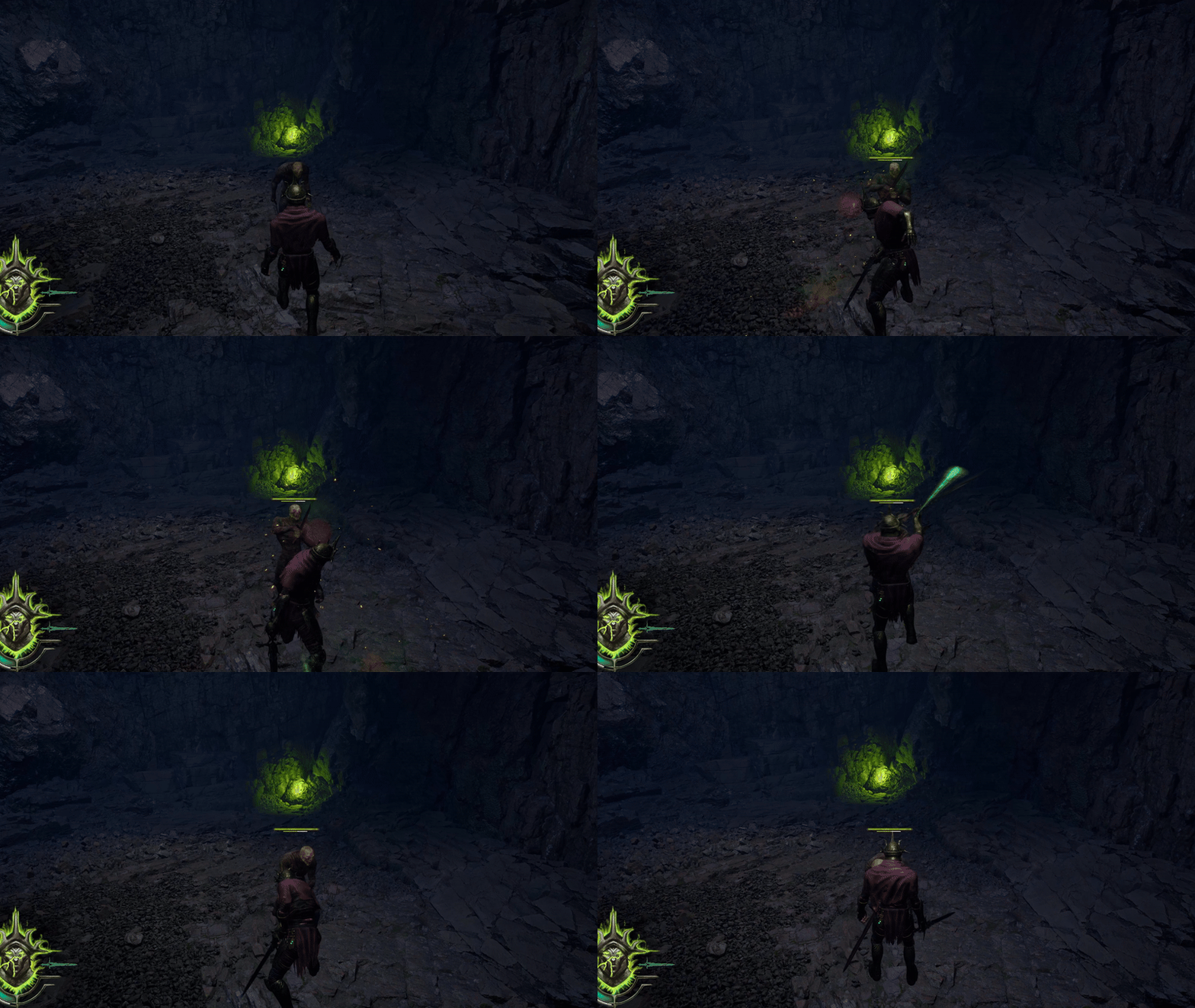
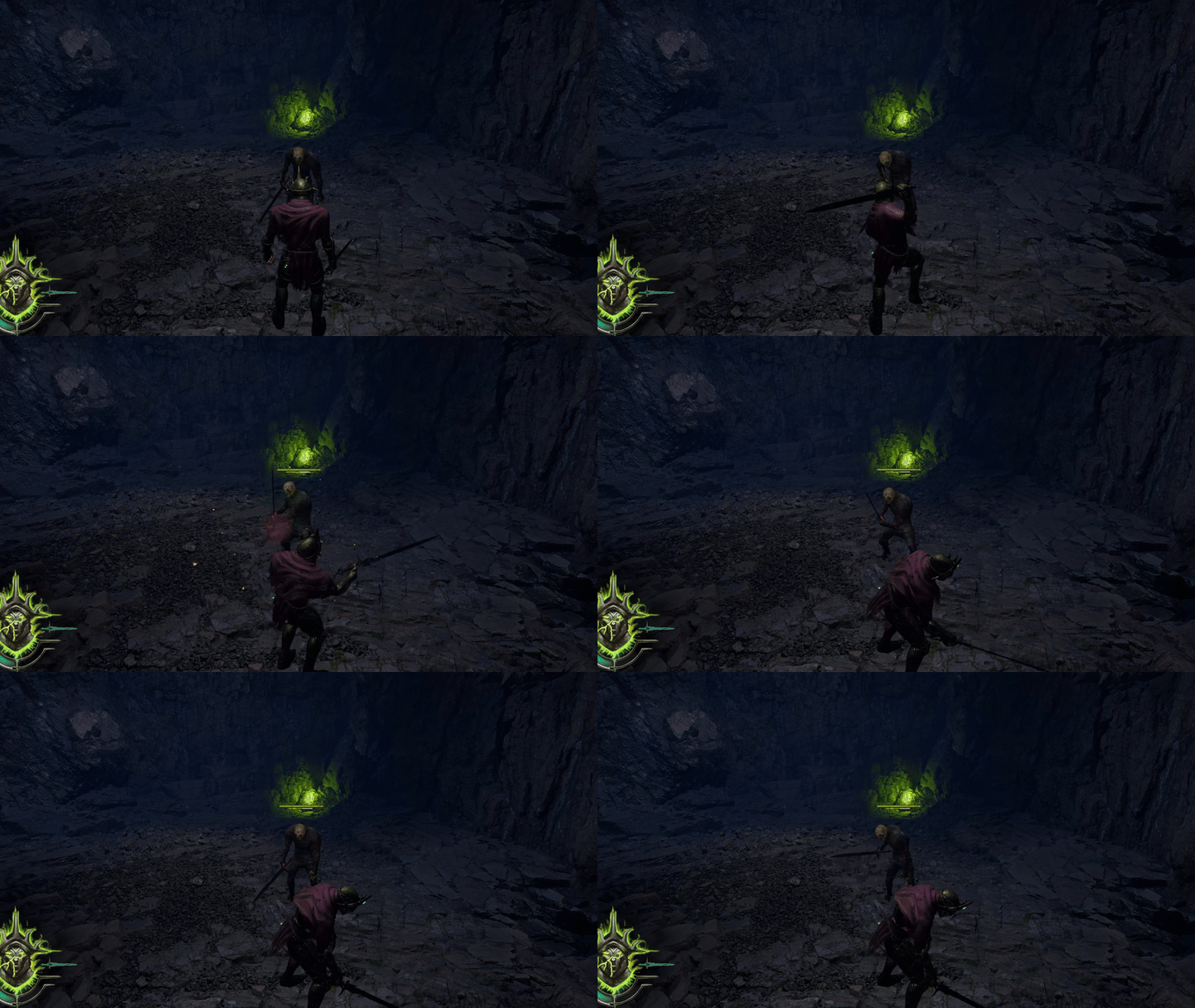
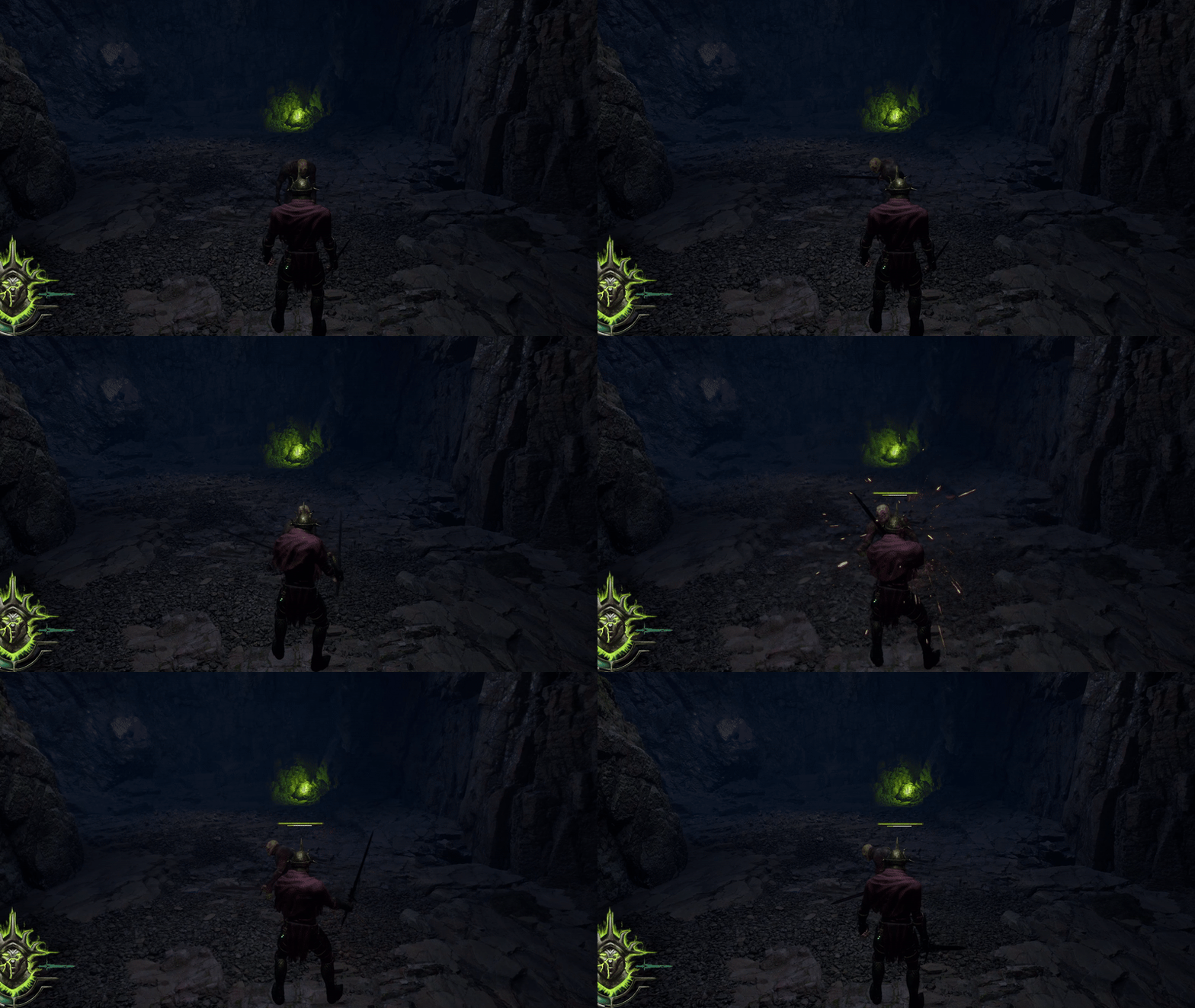
Each attack is defined by a struct containing data like animation section, stamina cost, damage weight, combo reset delay, attack type (light, heavy, special), and whether it can be blocked.

Blocking & Parrying:
Player:
-
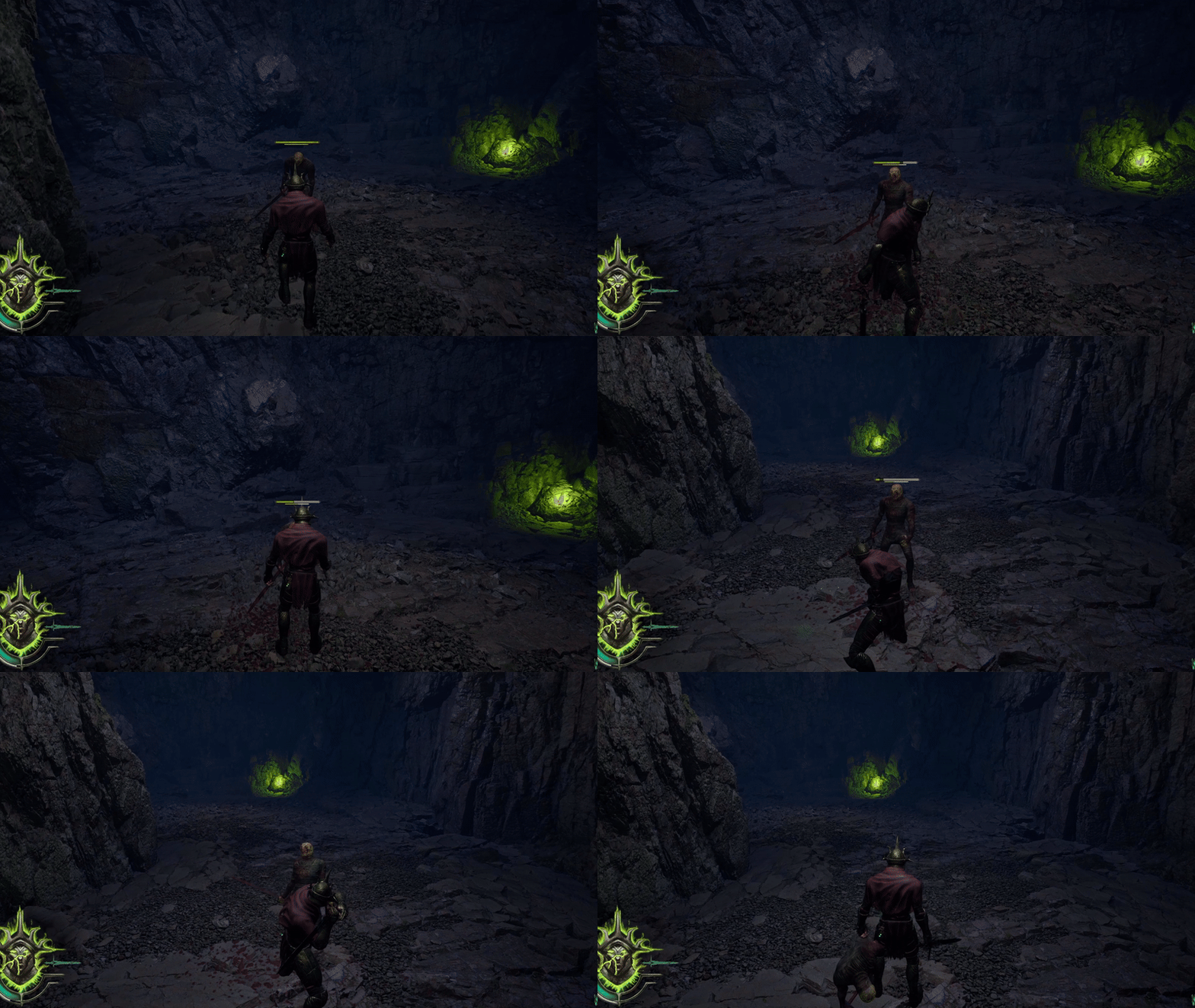
A dot product between the player’s forward vector and the attack’s direction checks if an attack falls within a 120° cone (threshold ≥ 0.5).
-
If within the cone and blocking, the attack is blocked; otherwise, it deals damage.
-
Upon blocking, bCanParry is enabled for a short period defined by a ParryWindow timer.
Enemies:
-
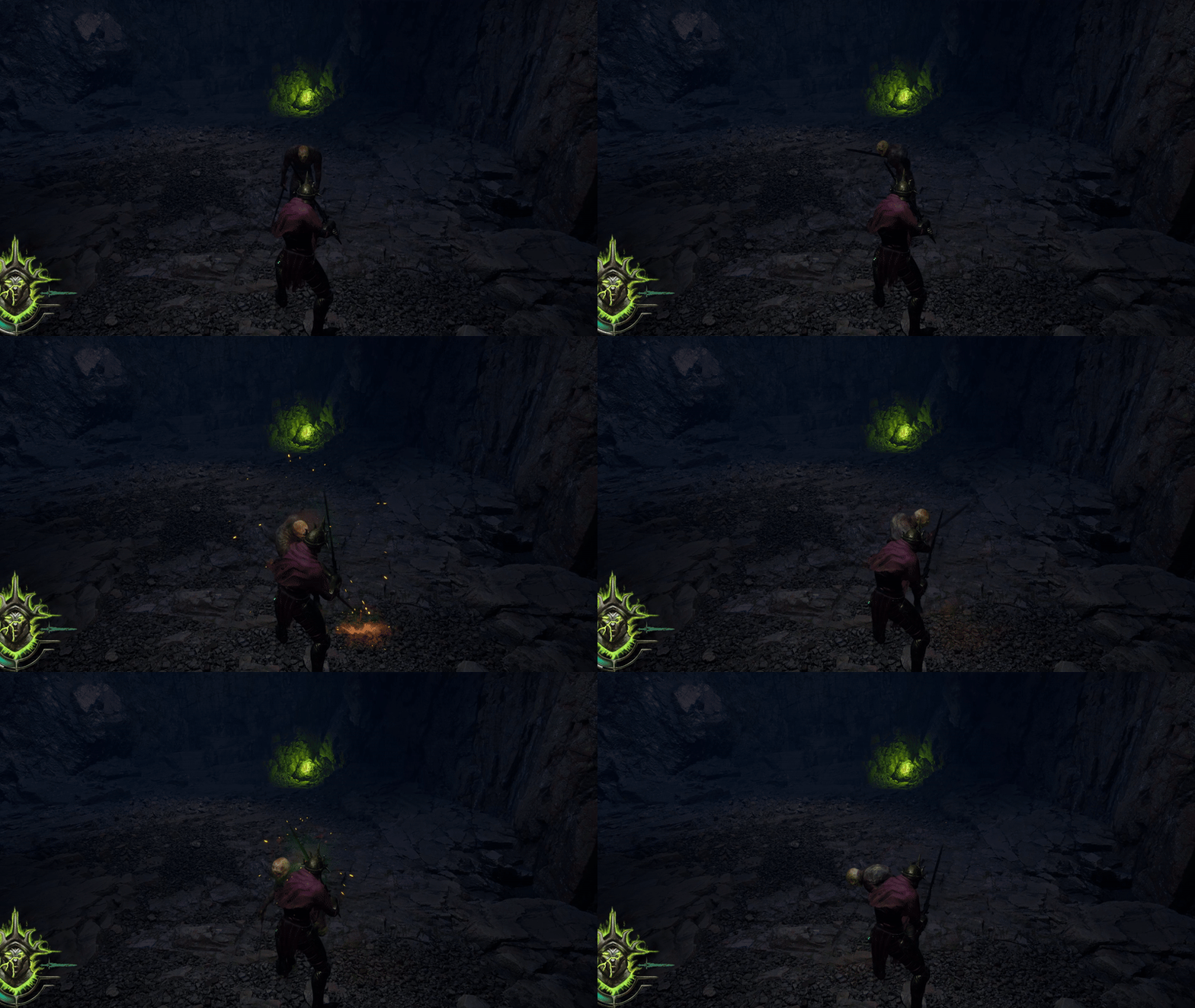
Enemies block attacks by simply checking bIsBlocking and randomly decide to parry.
-
Future improvements aim to implement similar dot product calculations for enemy blocking.
Target Locking
-
Target Detection:
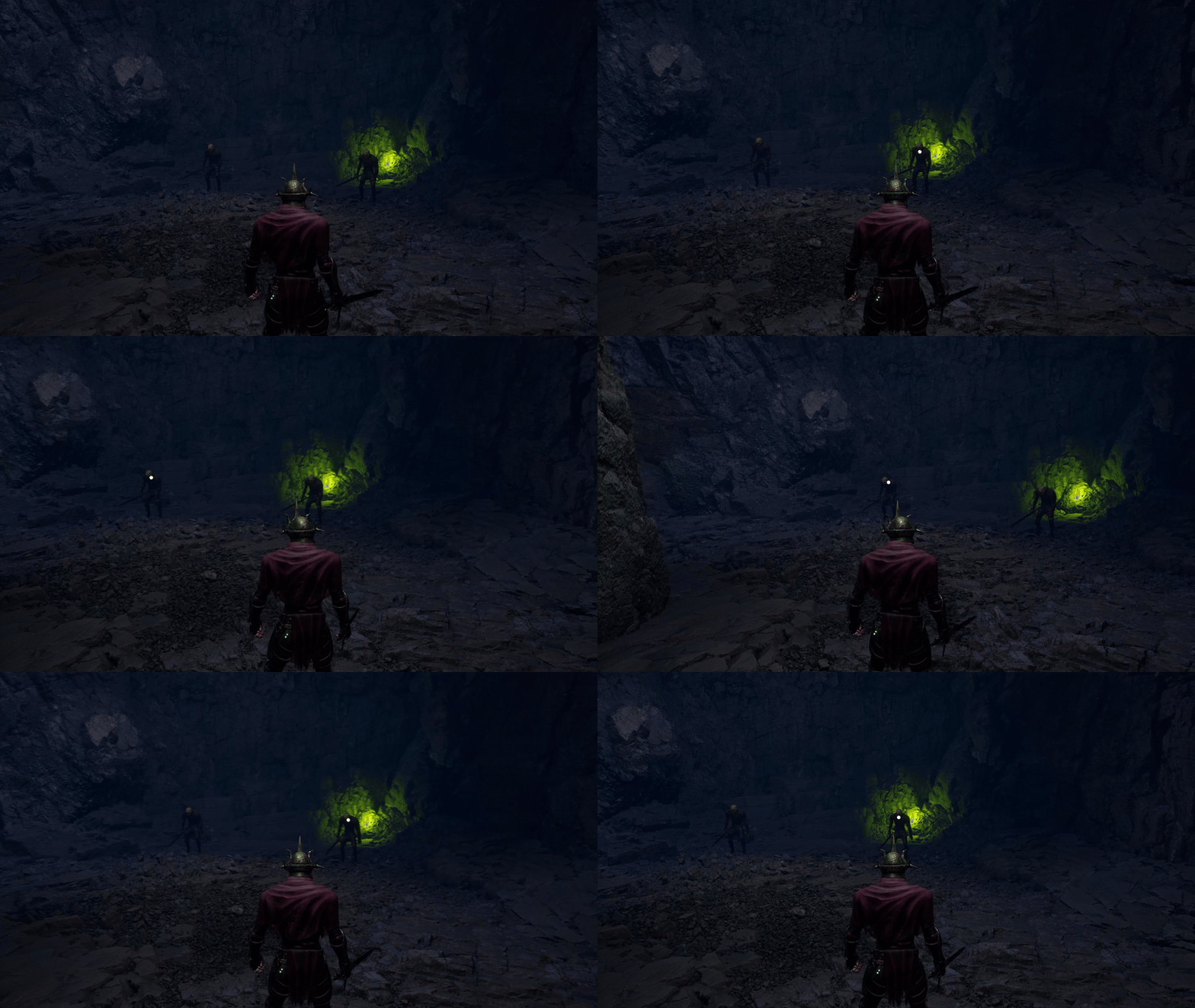
Perform a trace to find potential targets within a specified radius around the player.
-
Locking onto a Target:
Identify the closest target within the radius that is also inside the camera's field of view (FOV). If such a target exists, lock onto it.
-
Maintaining the Lock:
Once locked onto a target, use a looping timer to periodically verify that the target remains within the radius. If the target moves out of range, the lock is released.
Target Lock Switching
-
Target Detection:
Perform a trace for all potential targets within the lock-on radius.
-
Direction-Based Switching:
Depending on the player's input (left or right), calculate the closest target based on the angle relative to the desired direction (left or right vector). Lock onto the identified target.
Equipment System
Slots and Categories:
-
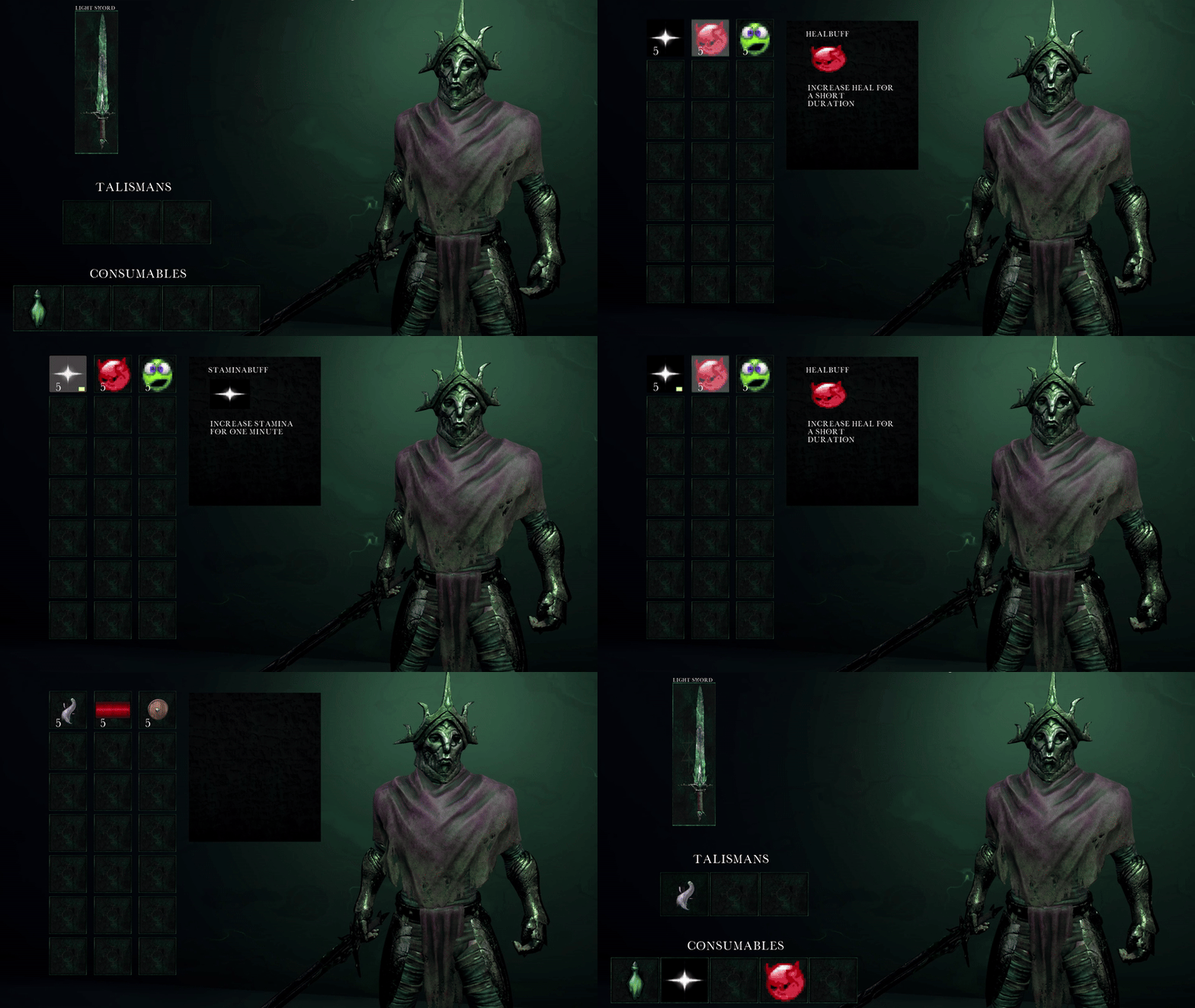
The equipment menu has a fixed number of slots, represented by UEquipmentSlot widgets. Each slot keeps track of the item it holds and whether it’s currently equipped.
-
Slots are categorized (like talisman or consumable) to ensure only compatible items can be equipped. The system automatically checks if the item is compatible with the selected slot when it’s clicked.
Items You Can Equip
-
Items, like talismans and consumables, are represented by UItemSlot widgets. These store details about the item, and when you interact with a slot, the system checks if the item currently equipped on the current or another slot. If it's not they can be equipped.
System Setup
-
When the game starts, the equipment system sets up empty slots for talismans and consumables. This defines how many items the player can equip at any time.
Equipping Items
-
When a player clicks on an equipment slot, the system shows only the items compatible with that slot’s category. Once the player selects an item, it’s assigned to the slot, and the menu updates to show the equipped item.
-
The system also tracks which slot each item is in. This is important because the equipment menu gets recreated every time it’s toggled.
Mantling System
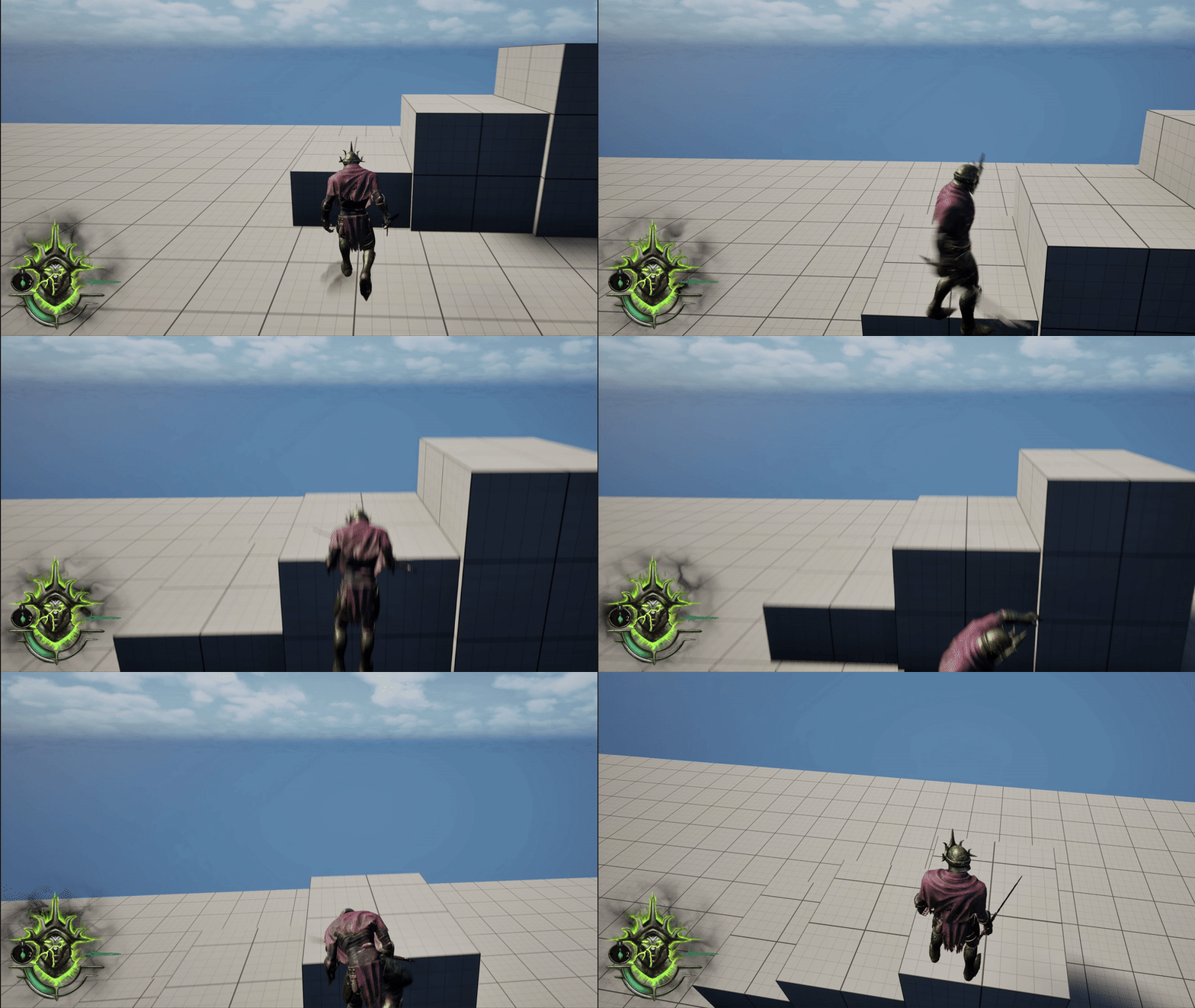
I created a system that allows low, mid, and high surface detection, selecting the correct animation for each.
-
First I start with a forward trace to detect any mantling surfaces in front of the player.
-
If it hits, a second trace is performed downward from a certain height to determine how high the surface is. Based on this, the system decides which mantling animation to use.
-
For smooth movement during mantling, I use Unreal Engines Motion Warping Component, which allows the player to transition smoothly from point A to B when the animation has root motion enabled.
This system also supports in-air mantling by continuously tracing while the player is in air.
I created a custom movement component to handle all parkour-related functionality.
Inventory System
The Item Struct
To manage items, I created an Item Struct that includes:
-
Item Type: Defines what kind of item it is.
-
Amount: Tracks how many of the item should be added.
-
Item Slot: Used for the UI to display the item.
To store items in the inventory, I use an Item Data Struct combined with a TMap to keep track of the item and its quantity. Each item type has its own struct containing specific details like its name and icon. These item type structs inherit from FTableRowBase, which allows me to define them in data tables in the editor.


Picking Up Items
To enable players to interact with items, I created a Pickup Class that inherits from my Item Class (an AActor). The Item Class contains common properties such as:
-
Item mesh
-
Pickup sound
-
Niagara effects
The Pickup Class includes an array of ItemStruct objects, enabling a single pickup to contain multiple items.
When a player picks up an item, the Inventory Component handles the addition by:
-
Checking if the item's RowName matches any of the existing item types.
-
Adding the item to the inventory map if it’s new.
-
Increasing the amount of the item if it already exists in the inventory.
This ensures that the system efficiently manages inventory without duplicating items unnecessarily.
Pickup Array

Inventory Map
